YouTube is a global platform known for its incredible variety of video content. Whether you’re looking for entertainment, educational material, or up-to-date information, you’ll almost certainly find it on YouTube.
However, ads have become an integral part of the YouTube experience as content creators and the platform itself earns revenue, many users find them disruptive—especially when they appear too frequently or feel irrelevant.
If you’re looking for ways to block YouTube ads there are several options, some simple others more advanced—each with its own pros and cons. In this article, I’ll walk you through 4 effective methods for blocking ads on YouTube, both on desktop and mobile devices.
1.Using an Ad Blocker (Browser Extension)
🔍What Is It?
Ad blockers are browser extensions (also known as add-ons) that automatically detect and block content from advertising servers. You can install them on browsers like Chrome, Firefox, Safari, Edge, or Opera. They work in the background to prevent most YouTube ads—and ads on other websites—from loading
Popular Ad Blocker Extensions:
- uBlock Origin – Free, open-source; available for most browsers (including Safari)
- AdBlock Plus – Free and widely used
- AdGuard Extension – Available in both free and paid versions
✅Pros:
- Free to use
- Easy to install—just a few clicks
- Blocks ads not just on YouTube, but across many websites
- Prevents ads before, during, and after videos
- Can be toggled on/off for specific pages
- Helps reduce data usage and speeds up page loading by stopping ad content
❌Cons:
- YouTube has begun detecting ad blockers in some newest updates and may restrict access or ask users to disable them
- Some websites block visitors who are using ad blockers
📥How to Install:
- Open your browser (e.g., Chrome)
- Visit the official extension store (e.g., Chrome Web Store)
- Search for “uBlock Origin”, “AdBlock”, or “AdGuard Extension”
- Click Install/Add to browser
- The extension activates automatically; settings are simple, and it runs quietly in the background
AdGuard
One of the most effective ad blocker tools I personally use—and highly recommend—for both mobile and desktop is AdGuard. AdGuard blocks all types of ads across websites and apps—not just YouTube—by filtering ad content in real time as you browse. It also blocks cookies and tracking scripts that collect your personal data to serve targeted ads. Beyond that, AdGuard includes privacy protection features and even parental controls, making it a well-rounded solution for families.
🧩Why AdGuard Stands Out
AdGuard has two main advantages that make it especially appealing:
- ✅ It works on all major platforms—Windows, macOS, Android, and iOS—covering laptops, desktops, and mobile devices.
- ✅ It functions as both a browser extension and a standalone app, offering ad blocking across your entire system—not just in the browser.
🧱AdBlock (AdBlock Plus) for All Browsers
Another popular tool is AdBlock (also known as AdBlock Plus), a browser extension that works across Chrome, Firefox, Safari, and even Android/iOS browsers. It blocks ads and banners on platforms like YouTube, Facebook, and most websites.
While using the free version, I found it worked well on YouTube. However, in some cases, it mistakenly blocked parts of normal page content—especially banner areas. Still, I was generally satisfied with its performance.
How to Install AdBlock:
- Open your browser (e.g., Chrome)
- Visit the Chrome Web Store (or your browser’s add-on store)
- Search for “AdBlock”
- Click Add to browser
- 🔄 Restart your browser after installation to activate it properly
2. Watching YouTube Without Google – Introducing NewPipe
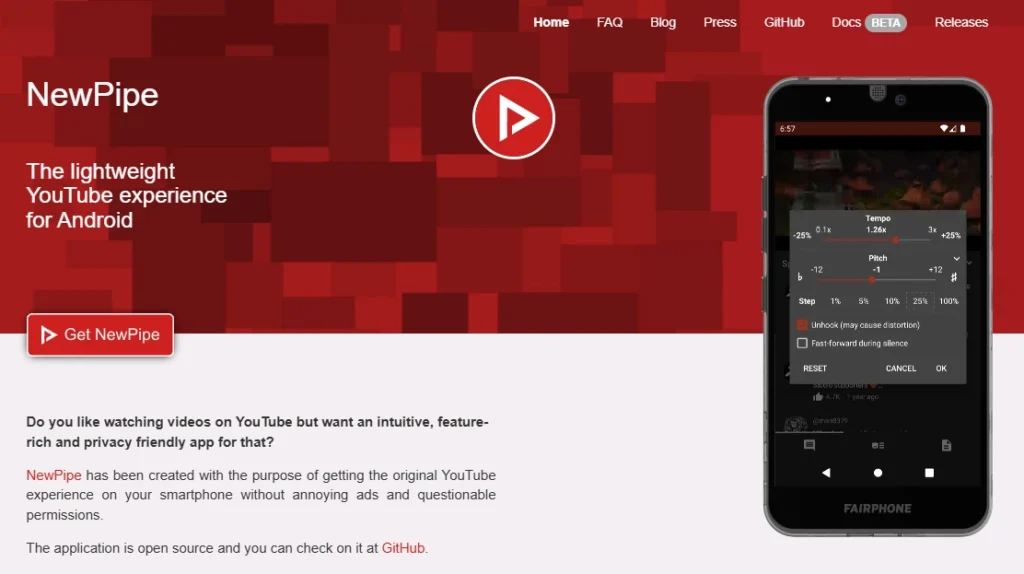
🔍 What is NewPipe?
NewPipe is a free, open-source alternative to the YouTube app for Android 5.0 and above. It’s lightweight, fast, and does not require a Google account—making it ideal for users who care about privacy.
NewPipe stands out because:
- It blocks all ads (before, during, and after videos)
- It supports background playback, so you can listen to music with the screen off
- You can download any video or audio file directly to your device
- It doesn’t track your viewing habits or connect to your YouTube/Google account
If you’re looking for a simple, private, and ad-free way to enjoy videos, NewPipe is worth a try.
📥 How to Install NewPipe on Android
NewPipe isn’t available on the Google Play Store (due to Google’s policies), but you can install it easily through F-Droid, a trusted platform for open-source Android apps.
✅ Recommended Method: Install via F-Droid
- Go to https://f-droid.org
- Download and install the F-Droid app
- Open F-Droid and search for “NewPipe”
- Tap Install
- Done!
🔐 F-Droid is a safe and respected directory of free and open-source apps for Android.
✅ Pros of NewPipe
- 100% ad-free experience
- Background playback works even with the screen off
- Ability to download videos and audio files
- No Google tracking, no account required
⚠️ Cons of NewPipe
- Comments are not visible on videos
- You can’t post or read comments
3. Browsers with built-in Ad Blocker, Brave & Opera
🔍What does it mean?
Some browsers—like Brave and Opera—come with built-in ad blockers, which means they can block ads (including on YouTube) without any extra extensions.
Personally, I use both of them daily in my work, and they’re excellent tools.
If you often watch YouTube through a browser—whether on mobile or desktop, Android, iOS (iPhone/iPad), or Windows—you’ll likely love them too.
🔒 Why Use Brave or Opera?
- Built-in ad blockers, even for YouTube
- Fast and lightweight browsing experience
- Strong privacy protection: blocks trackers, includes features like Tor mode (Brave)
- Supports Chrome extensions (Brave desktop version)
- Works great on mobile devices—a solid alternative to default browsers
❗ Notes & Limitations:
- On iOS, due to Apple’s system restrictions, some features may be limited.
For example, full ad-blocking may not be perfect, but it still works quite well most of the time. - On Android, iOS, and desktop, these browsers offer fully functional ad blocking, including on YouTube.
🔗 How to Get Them:
- Brave: brave.com/download
- Opera: opera.com
🧭 How to Enable Ad Blocker in Brave & Opera
💻 On PC (Windows, macOS, or Linux):
- Open your browser (Brave or Opera)
- Go to Settings
- Navigate to the “Privacy & Security” section
- Enable:
- “Block Ads”
- “Block Trackers”
- (Optional) You can add exceptions for specific websites
📱 On Android:
- Tap the menu icon (☰)
- Go to Settings > Ad Blocking
- Turn on Ad Blocker
4. DNS-based Ad Blocking (e.g. with Pi-hole)
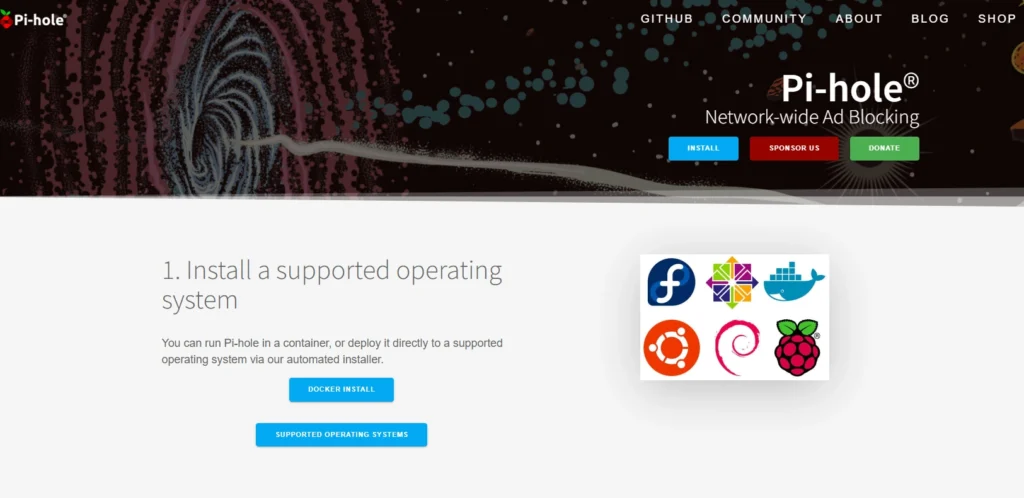
🔍What Is Pi-hole?
Pi-hole is a network-wide ad blocker. It acts as a local DNS server that filters out requests to ad-serving domains before they even reach your device. It’s a powerful solution for blocking ads and trackers, mainly suited for more technically advanced users.
✅ Advantages:
- Works across all devices on your network (computers, smartphones, smart TVs)
— no need to install anything on each device - Highly effective at blocking trackers and pop-up ads
- Provides detailed statistics via a web interface
- Saves bandwidth and can speed up browsing
❌ Disadvantages:
- Requires technical knowledge for installation and maintenance
- Does not always block YouTube ads (because they’re integrated into video streams)
- You need a device to run it as a server
(e.g., a Raspberry Pi, Linux PC, or other always-on system)
⚙️ How to Set It Up:
- Install Pi-hole from the official site on a Raspberry Pi, desktop PC, or Linux server
→ Follow the installation guide provided on pi-hole.net - Configure your router or devices to use the Pi-hole’s DNS IP address
- Enable and manage your blocklists (lists of ad/tracker domains)
Pi-hole is ideal if you want centralized ad blocking across your entire network without installing individual ad blockers, and also want visibility into your internet traffic.
5. YouTube Premium
📌 What Is It?
YouTube Premium is Google’s official subscription-based service that removes all ads from YouTube and offers several additional features. It’s a convenient option for those who want a completely ad-free experience without relying on third-party tools or apps.
🔑 What It Offers:
- Ad-free video playback across all of YouTube
- Offline downloads so you can watch videos without an internet connection
- Background playback, perfect for music or multitasking
- Access to YouTube Music Premium for ad-free music streaming
💰 Pricing:
- Standard Plan: Around €11.99/month
- Student Plan: €7.99/month (requires verification via SheerID)
- Family Plan: €17.99/month, shareable with up to 5 other members in the same household
✅ Pros:
- Supports content creators through official revenue-sharing
- Offers a better experience on smartphones, tablets, and smart TVs
- No third-party installations needed
❌ Cons:
- Requires a monthly subscription
- Does not block in-video sponsorships or embedded ads mentioned directly by YouTubers
- Does not block ads on other platforms